 KNOWLEDGEBASE
KNOWLEDGEBASE
KNOWLEDGEBASE
As is the case with any attached game controller, your new SIM-PANEL T1 SKRS Shifter Knob must be fully configured within American Truck Simulator (ATS) and/or Euro Truck Simulator 2 (ETS2) in order to function properly.
To get started, ensure your new SIM-PANEL T1 SKRS Shifter Knob is plugged into an available USB port on your computer (USB Hubs are not recommended) and fully initialized by Windows prior to continuing.
Launch American Truck Simulator (ATS) and/or Euro Truck Simulator 2 (ETS2)
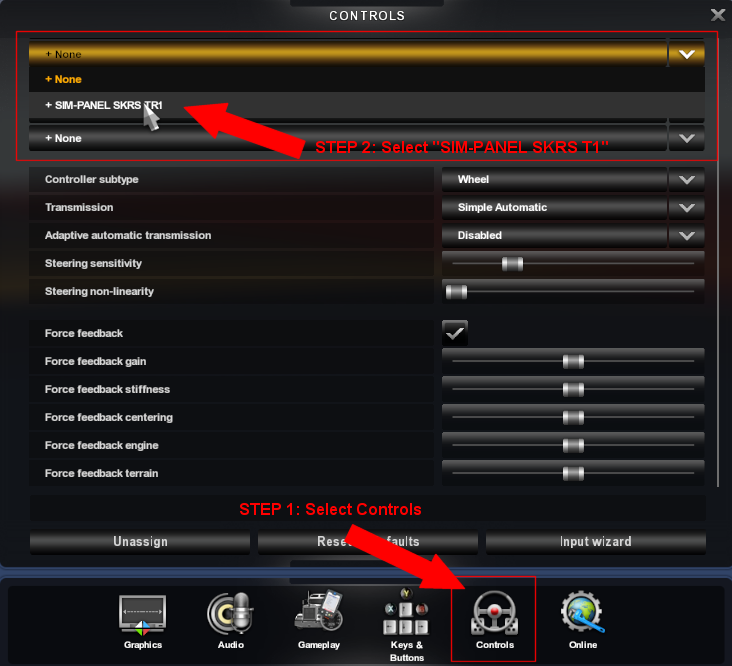
Select "CONTROLS" from the ATS/ETS2 Menu (see image above)
At the very top of the dialog, choose an unpopulated control slot (NONE), click the DOWN ARROW to the right and select "SIM-PANEL SKRS T1"
Scroll down to "H-shifter setup".
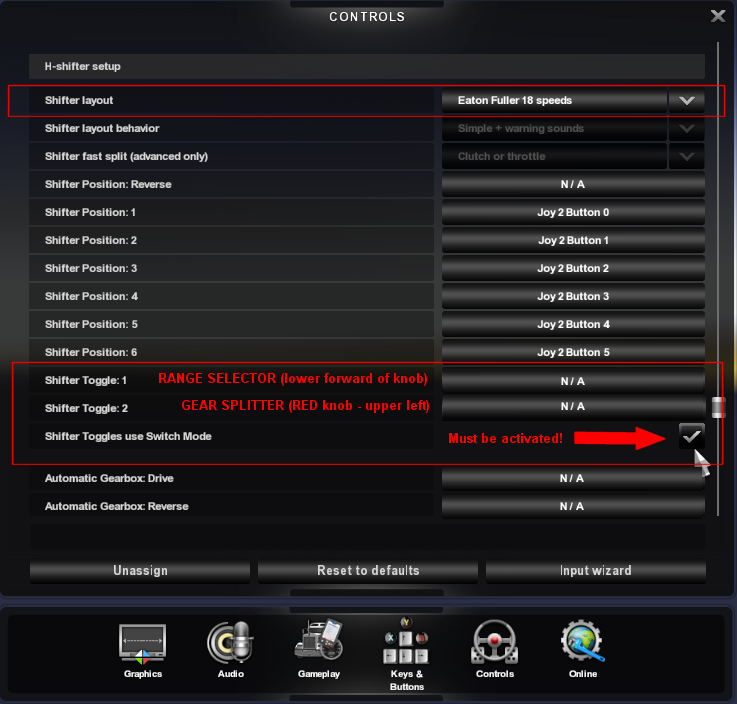
Select the desired "Shifter layout" from the available drop-down selections.
Ensure your actual shifter is properly configured and all gear positions are successfully mapped within the game before proceeding. Please refer to the documentation and/or help resources provided by the shifter manufacture or provider for setup instructions pertaining to your specific shifter device.
Click the mapping button for "Shifter Toggle 1" and cycle the RANGE Selector (BLACK, lower forward) of your T1 SKRS Shifter Knob.
Click the mapping button for "Shifter Toggle 2" and cycle the GEAR SPLITTER (RED, upper left) of your T1 SKRS Shifter Knob.
IMPORTANT! Ensure the "Shifter Toggles use Switch Mode" option is ACTIVATED.
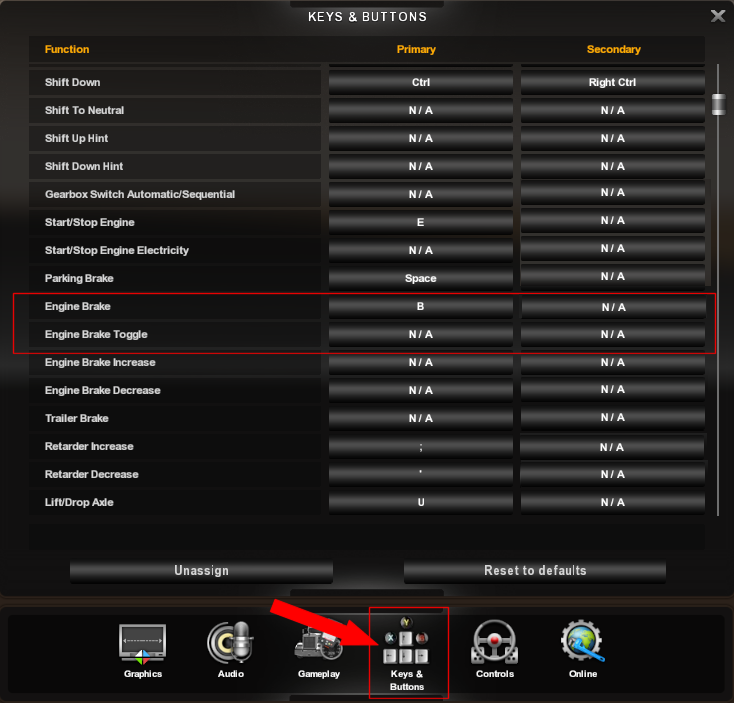
Select "Keys and Buttons".
Select the mapping button applicable to your functional JAKE BRAKE preference (see REMINDER above) and cycle (press and release) the JAKE BRAKE button on your T1 SKRS Shifter Knob.
First and foremost, the truck you are driving in-game MUST be equipped with the corresponding transmission (10, 13 18 speed etc.). This is often overlooked!
The clutch must be depressed and the engine RPM properly matched prior to shifting gears, gear splitting and/or changing the gear range.
PRACTICE MAKES PERFECT!